![OpCentral_white_with_colour_block-1.png]](https://3913632.hs-sites.com/hs-fs/hubfs/OpCentral_white_with_colour_block-1.png?height=40&name=OpCentral_white_with_colour_block-1.png)
|
Keep your team engaged and in the loop by posting regular company newsletters, milestones, memos and announcements. Each article has it's own permission and notification settings, so you can ensure that the right people are getting the right communications at exactly the right times. Gone are the days of mailing lists or "company-all" emails, use the News module for better content options and more oversight to who's seeing your brand's important info. |
Jump to section: |
Usage Suggestions & Ideas
|
|
Or any other bulletin, memo, announcement or informative article that anyone within the brand should know about.
News Widget display on the Dashboard
Here's how it works:
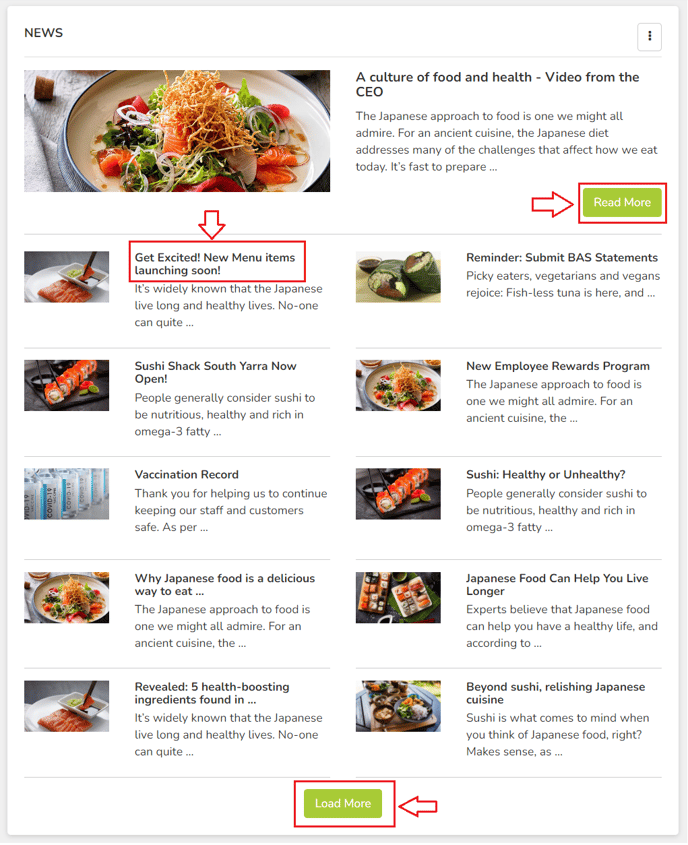
- In the "News" article list widget, 11 articles total will display.
- The articles are ordered by "pinned" first at the top, and then most recently posted next, continuing in chronological order of when they were published.
(Note: only "featured" articles can be pinned.) - If there are no pinned articles, the most recent article will display at the top of the widget in full width of the widget, and the next 10 will display in half width each underneath.
- A "Load More" button will appear once there are more than 11 articles, which users can press if they wish to see the next, older 11 articles.
- To read an article, click the title or the "Read More" button. Example below.
Manage Articles & View All Articles
Clicking on the ellipses (three dots) on the News widget will display more options.
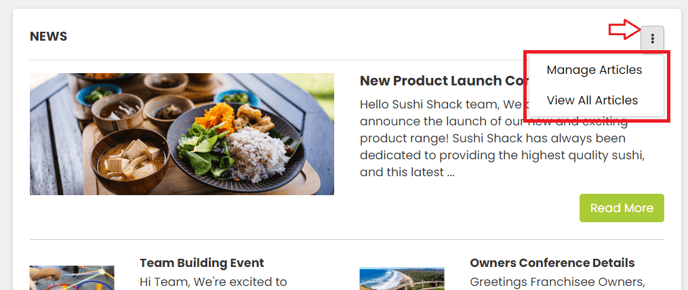
- Manage Articles: Only Admins and users with the "Can Manage", "Can Manage Drafts" or "Delete" permissions will see this option in the menu (jump to the Module Permissions for info on those). This is where articles are managed, such as creating new ones, editing existing ones, archiving old ones, and viewing the engagement (viewer list).
- View All Articles: All users will see this option. This opens a detailed list of ALL articles that user has access to, along with handy information like whether they have viewed it yet or not. This list is easily searchable using the built-in search bar, and can search titles, categories, publish dates, etc.
Tip: Since the "All Articles" list is useful to end-users, consider adding a Quick Link for easier access to that page! See the "Quick Links" tutorial.
Featured Banner
- The "Featured articles" display in a separate banner widget to the article list widget. Articles can be featured & unfeatured any time.
- If there is more than 1 article featured, the banner will cycle (carousel) through the featured articles, ordered by "pinned" first (if any), and then most recently posted after. You can click the side arrows to move between the featured articles and see each featured article represented by a dot below the "Read Article" button.
- Clicking the "Read Article" button will open up that article to view.
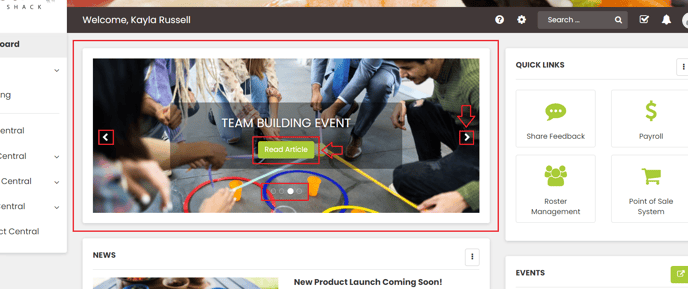
Note: It's completely optional to have "featured" articles, and not necessary to publish an article. The widget will disappear from the dashboard if there are no featured articles, so it doesn't take up space on the dashboard if there's nothing in it. It will automatically reappear once an article is featured.
To mark an article as "featured", enable the "Featured Article" toggle while you are creating or editing it.
Searching for Articles
There are two methods to search for News Articles, depending on preference and what users are searching for.
1. "Global" search: Using the main (global) search bar that sits in the toolbar across the entire platform, search for words or phrases that are included in the title or content of the article.
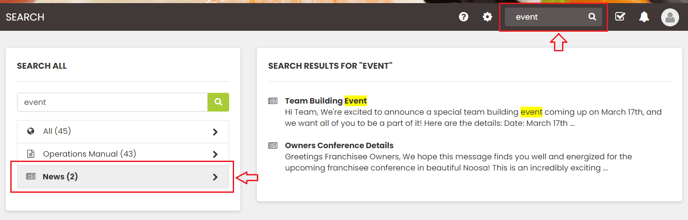
Relevant articles will display in the results, if the search word/phrase is within the title or first few lines of the article, it will be highlighted. If it's not highlighted, then the word/phrase appears further down in the article.
Note: Main search results display in the order of when they were last published or updated, with the most recent displaying at the top. This order cannot be changed or a different preference set.
2. All Articles search: Using the search bar on the "View All Articles" page, search for any word or date that displays in the list. This could be a word in the title, a publisher's name, a category, etc.
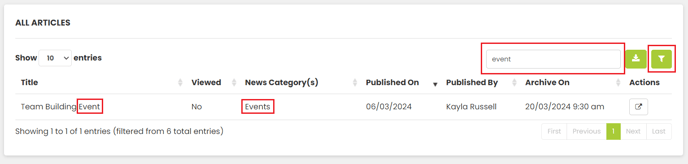
The All Articles list can also be filtered by category, using the filter button.
Tip: This search method will not search within the content of the article, so it can provide a more streamlined searching experience.
Video tutorial
This basic video tutorial shows:
|
|