
Manage Articles
- Open the Manage Articles page.
Click Admin then News, or on the news widget, click the ellipses (three dots) then Manage Articles.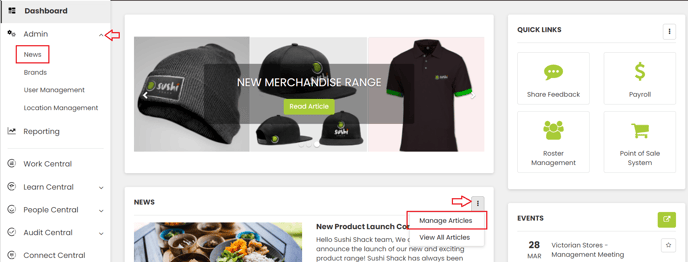
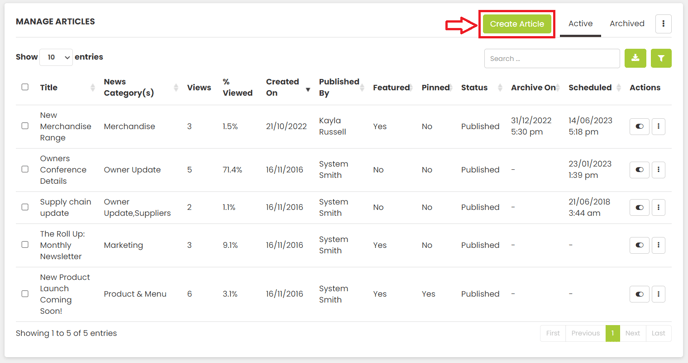
- This is where your full list of news articles will display. Click Create Article on the right corner.
Title & Contents
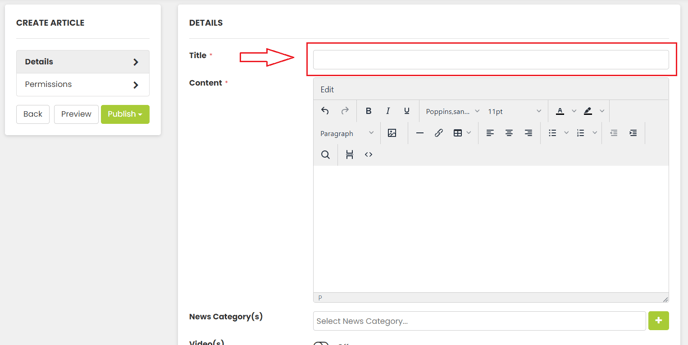
- Add a Title.
- Add your Content.
Use the toolbar editor to stylize your content with colours, headings, hyperlinks, lists, tables, images, etc.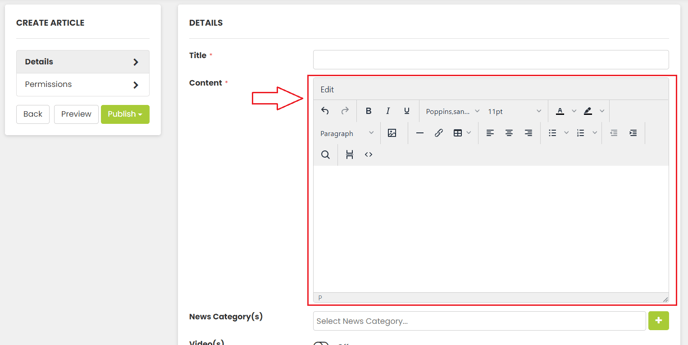
Tips: You can paste from other sources, such as a Word doc or another website, however you may encounter some formatting issues that will need a little manual clean up. This is normal; tips for formatting can be found here!
Images will not paste in, you need to use the upload image button to add any photos to the Content.
Additional Options & Configs
Set or add all the other non-required options for the article: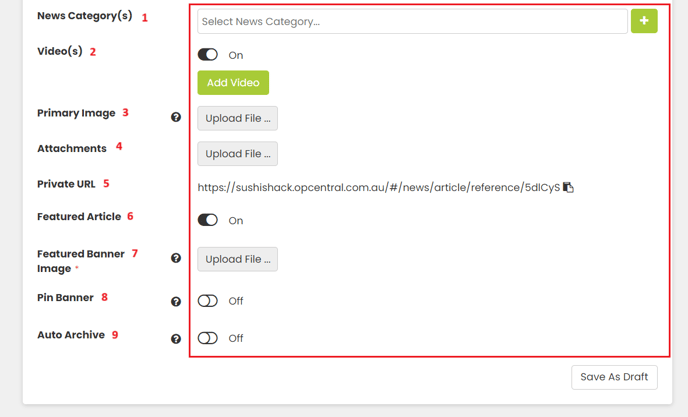
1. News Category(s): Assign categories to the article, this can help keep content organised and easy to find by end users.
2. Video(s): Embed a video by uploading one, or linking either YouTube or Vimeo. For more instruction on embedding videos, see the "How to Embed Videos" tutorial.
3. Primary Image: This displays on the dashboard where the articles are listed.
The recommended minimum size for the Primary image is 500px wide by 200px high; Images are displayed in a 5:2 aspect ratio. Images that meet this sizing will not be cropped or cut off when viewed on different screen sizes, and will automatically re-size to fit within the space.
4. Attachments: PDF's, excel spreadsheets, etc, that are all downloadable by the reader. These will display as attachments at the bottom of the article.
5. Private URL: This is simply a direct link to the article. You can use this in other areas of the platform (or externally) to link back to this article. Readers must be logged in to see the article, even if the link is posted externally.
6. Featured Article. This puts a banner on the dashboard with the title and link to the article. This banner will scroll through the images in a carousel if there is more than one article is featured. Featured articles can be un-featured at any time, so they do not display in the banner anymore but will remain in the list of articles.
- If Featured, set the featured banner image. This can be the same as your primary image, or different if you choose.
The recommended minimum size for the Featured image is 1000px wide by 400px high; Images are displayed in a 5:2 aspect ratio. Images that meet this sizing will not be cropped or cut off when viewed on different screen sizes, and will automatically re-size to fit within the space. A smaller image may appear pixelated or stretched on some screen sizes.
8. Pin Banner: Toggle this on if you want the image to display as the first image in the featured banner carousel and at the top of the news article list. If no articles are pinned, the carousel will just scroll in chronological order of when the articles were published (but all pinned articles are always displayed first).
9. Auto Archive: Enable this toggle to automatically archive this news article after the date selected has passed. Archived articles are not shown on the dashboard, cannot be found in a search by end users, and will clear out any incomplete "Required Reading" sign offs that haven't yet been completed. Any complete sign offs will remain under Reporting > News. The archived articles will stay stored under the Archived tab for Admins.
Permissions
Set the Permissions by clicking the Permission tab. Article permissions always default to Roles, however they can be set by User Groups or individual Users as well.
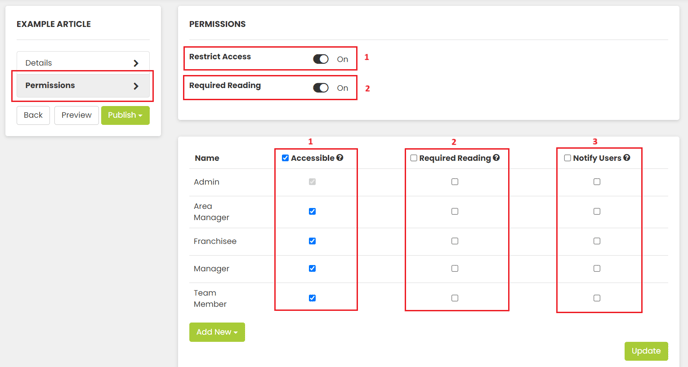
1. Restrict Access: Use this toggle to set who has access (can see) this article. Once toggled on, you will see an "Accessible" column with tickboxes. If the box is ticked under Accessible, then anyone with that role or user group has access to the article. Once published, these users will get a +1 under their bell icon (notifications) to alert them of the new article. They will not get an email or push notification, unless the Notify Users box is also ticked.
To add additional user groups or users to the permission list, click the "Add New" button at the bottom of the list.
2. Required Reading: Use this toggle to set who needs to sign-off and confirm that they have read the article. Once toggled on, you will see a "Required Reading" column with tickboxes. If the box is ticked under Required Reading, then anyone with that role will be required to sign-off (by clicking/tapping an "I Confirm" button) on the article. Once published, each user with that role will receive an in-platform task (+1 on the tasklist), an email notification, and a push notification on their phone if they have the mobile app installed. The task will not clear until the article has been signed-off on (unless & until the article is archived or the permissions change).
Any user with Reporting permissions can then see the associated sign-off records for that article (read vs unread).
If the reminder emails have been enabled, any users that do not sign-off on the article within the associated reminder frequency will be reminded to do so via email.
3. Notify Users: By clicking this tickbox next to the role, any user with that role will receive an in-platform notification (+1 on the bell icon), an email notification, and a push notification on their phone if they have the mobile app installed. They will not need to sign-off on the article, unless the Required Reading toggle is also enabled.
Publish
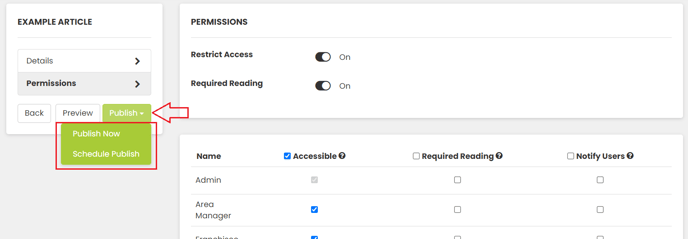
Click Publish and select Publish Now, or choose to schedule your article to be published at a later date with the Schedule Publish button.
Any users that have been marked off as either Notify or Required Reading will receive those relevant notifications immediately (if Publish Now is selected) or on the Publish date/time (If Schedule Publish is selected).
Viewer List & Other Manage Options
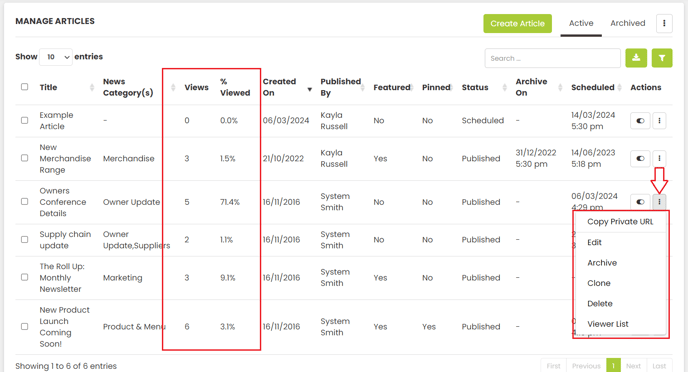
- Back on the Manage Articles page, you can see the number of views, % viewed and a list of who has viewed it, who hasn't and the total audience (regardless of whether it was marked off as Notify or Required Reading).
- Click the ellipses (three dots) under Actions to access the Viewer List to see the details.
- You can then manage the article as needed from this page, via the Edit, Archive, Clone, Delete, Viewer List, and Unpublish buttons.
Note: A "view" is counted as the first time a user opens the article and does not include subsequent views.
Remove Featured or Pinned
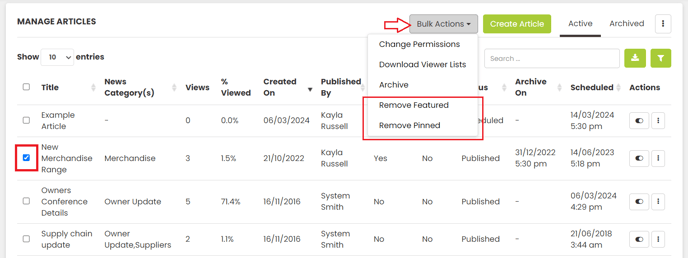
To remove the article from the featured banner carousel on the dashboard (unfeature) or remove it as a pinned article (unpin):
- Tick the box(es) next to the article(s) you want to remove the feature or pin on.
- Under the Bulk Actions button, select either the Remove Featured or Remove Pinned buttons. Note: this button will only appear once you tick at least one box.
- Select the Confirm button on the popup.
Video Tutorial
Note: the video below is a basic follow-along only and does not have audio. It shows:
|
|